
How to Improve Largest Contentful Paint WordPress Metrics
Largest Contentful Paint (LCP) measures how long it takes for the biggest piece of content on a screen to appear. This metric tells Google when a page becomes useful to a human visitor and has become a standard for user experience. In today’s digital environment, a slow LCP causes high bounce rates and lower search rankings because users refuse to wait for a lagging screen. While WordPress powers a huge portion of the web, many sites fail to meet the Good threshold of 2.5 seconds or less. Improving largest contentful paint WordPress scores requires a technical strategy that targets server speed, asset delivery, and code execution. You must look past basic plugin solutions and focus on the underlying architecture of your website. A fast site creates a competitive edge that helps a business grow in a crowded market. It is the first impression a visitor has of your brand’s technical competence.
Step 1: Analyze the Components of a 2.5 Second Load
To optimize LCP, you must break the metric into four distinct parts to see where the time is being lost. Addressing each part individually helps find the exact cause of a delay rather than guessing at the problem. Time to First Byte starts the clock and measures the initial response from your hosting provider. Resource Load Delay tracks the time between that response and when the browser finds the main hero image. Resource Load Duration is the actual time it takes to download those specific image pixels over the network. Finally, Element Render Delay measures any time the browser spends waiting to paint the image after the download finishes. If the server takes 1.5 seconds just to send the first byte of data, the site has already used 60% of its time budget. This makes it very hard to finish the rest of the loading process within the 2.5-second limit set by Google Search Console. Most failing sites suffer from a combination of these factors rather than just one single issue.
Step 2: Improve Server Response and TTFB
The first step in any performance plan involves the hosting environment because it dictates the speed of every subsequent action. Time to First Byte is the most common bottleneck for WordPress sites on cheap, shared hosting where resources are split among many users. These servers often struggle to process PHP scripts and database queries quickly during high traffic periods. Moving to a managed hosting provider that uses Nginx or LiteSpeed servers can lower TTFB by providing dedicated processing power. These environments use the latest PHP versions and better hardware to handle requests with minimal friction. However, caching is the most effective way to reduce server think time by serving pre-built files. Without a fast response from the server, all other frontend optimizations will fail to move the needle on your LCP score. High-quality hosting is the foundation upon which every successful WordPress site is built.
Implement Edge Caching and Object Caching
Standard caching saves a static copy of a page on your server to avoid repeating the same work. Edge caching takes this further by storing that copy on a global network of servers rather than a single location. When a person visits your site, they receive the page from a server physically close to them which reduces travel time. This reduces the distance data must travel and minimizes the physical constraints of the internet. Cloudflare offers tools that keep WordPress HTML at the network edge to lower latency for international visitors. For sites with dynamic content like shopping carts, object caching is necessary to keep the experience smooth. Tools like Redis store database results in the server memory for nearly instant access. This prevents the site from having to ask the database for the same information repeatedly for every page view.
Step 3: Reduce Resource Load Delay
The browser must find the LCP image as soon as possible to start the download process early. Many site owners make the mistake of lazy loading every image because they think it saves bandwidth. While lazy loading helps for content at the bottom of a page, it hurts LCP significantly when applied to the hero section. It forces the browser to wait until the entire page is parsed before it starts downloading the main hero image. This creates a gap where the browser is idle while the user sees a blank white space. You want the browser to know exactly which image to grab as soon as it reads the first few lines of code. This phase of the load should be as short as possible to leave more room for the actual download. Proper asset discovery is the difference between a site that feels fast and one that feels broken.
Use Fetch Priority and Preloading
You can tell the browser which image is most important by using the fetchpriority="high" attribute on your main asset. Adding this to your tag puts that image at the front of the download queue above all other files. This ensures that the browser does not waste time grabbing small icons or background patterns before the main content. If your hero image is defined in a CSS file, use a preload link in the header to jumpstart the process. This allows the browser to start the download before it even finishes reading the external CSS file. This simple change can save hundreds of milliseconds and is often enough to move a site into the green zone. You should also audit your header to ensure no large scripts are blocking the browser’s scanner from finding your images. These technical hints provide the roadmap the browser needs to load your site in the correct order.
Step 4: Optimize Asset Delivery
Most LCP elements are images which means your file management strategy is a major part of the solution. If an image is too large, the Resource Load Duration will be too long for mobile users on slow networks. Professional optimization goes beyond just making a file smaller through basic compression tools. You must consider the dimensions of the image and the file format used for delivery. High-resolution photos can easily bloat a page if they are not handled with care and precision. Many WordPress themes default to using full-size images that are far larger than the actual display area. This results in wasted bytes and a poor experience for users with data limits. Managing your media library with a focus on efficiency is a requirement for modern web standards.
Adopt Next-Gen Formats: WebP and AVIF
The industry has moved away from JPEG and PNG because they are no longer the most efficient options. WebP is now the standard for most websites, but AVIF offers even better compression for high-quality photos. AVIF files are often 30% smaller than WebP files without losing any visual quality or detail. Modern versions of WordPress support these formats, making it easier to transition your media library. Using these formats reduces the total amount of data the user needs to download for the LCP to finish. This is especially helpful for visitors using mobile data who may have a less stable connection. Implementing an automated conversion tool ensures that every new upload is optimized without manual effort. This keeps your site fast as you continue to add new content and images over time.
Configure Responsive Images
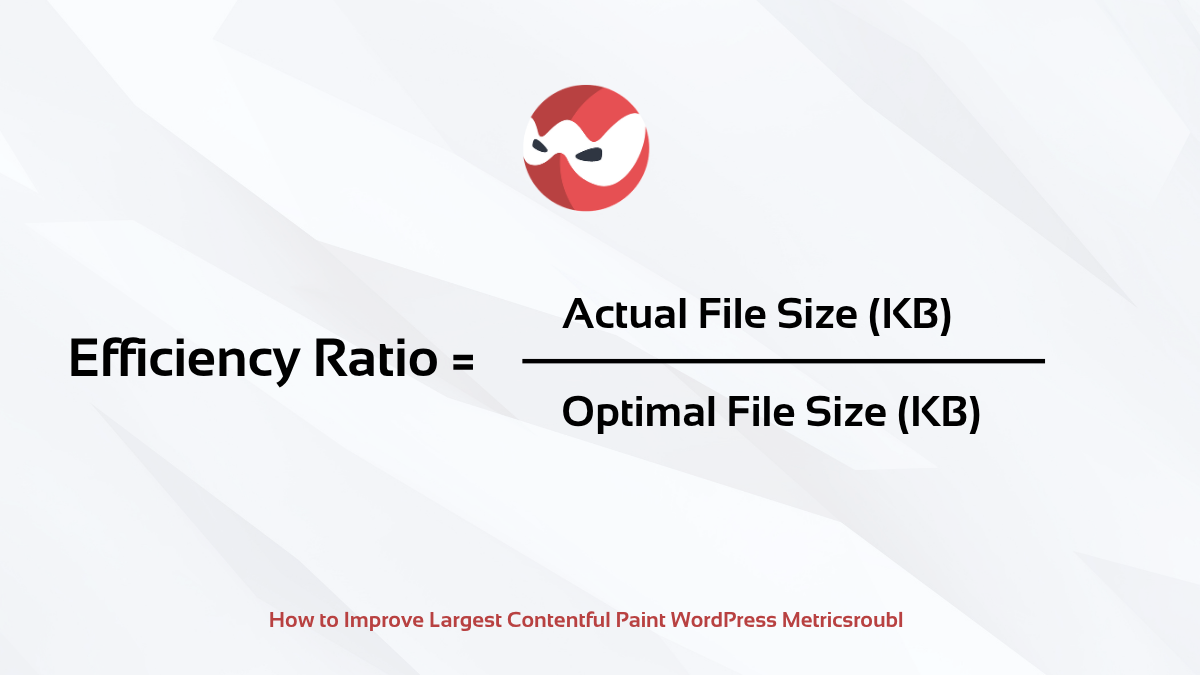
Serving a desktop-sized image to a mobile phone is a major error that many developers overlook. It wastes data and slows down the paint time because the phone has to resize the image after downloading it. WordPress uses srcset to provide different image sizes for different screens automatically. This ensures the browser only requests the smallest version of the image that will look sharp on the device. You can calculate efficiency with a simple formula that compares your actual file size to the optimal size. The goal is to keep this ratio as close to 1 as possible across every page on your site. Consistently checking these ratios helps prevent performance regressions during site updates.
Step 5: Clear the Render Path
The final delay happens when an image is downloaded but the browser cannot show it on the screen. This occurs because the main thread is busy with other tasks like calculating layout or running scripts. Usually, render-blocking CSS and JavaScript are the culprits that keep the screen blank. The browser will not paint anything until it has processed all the instructions in your style sheets. This means a single large CSS file can hold up the entire visual experience for several seconds. You must streamline the way the browser reads your code to ensure the main thread is always available for painting content. Efficient code execution is just as important as small file sizes when aiming for a fast LCP. Reducing the workload for the visitor’s device makes the site feel snappy and responsive.
Extract Critical CSS
Browsers stop everything to download and read CSS files before they show a single pixel to the user. To fix this, you should identify Critical CSS which is the code needed for the top part of the page. You place this code directly in the HTML so the browser sees it immediately without an extra request. The rest of the CSS loads later so it does not block the LCP from rendering. This method ensures that the user sees the header and hero section almost instantly. It creates the perception of a fast site even if the rest of the page is still loading. Managing styles in this way requires a deep understanding of how browsers interpret web documents. It is one of the most effective ways to eliminate the render delay that plagues many WordPress installations.
Manage JavaScript Execution
JavaScript is heavy and slow to process because the browser must parse and compile the code before running it. To keep the main thread clear, you should audit every script that loads on your site. Delete plugins that do not provide clear value or those that load code on pages where they are not used. Use the defer attribute on scripts so they load after the main page content is finished. This prevents third-party tools from stopping the visual load of your website. You can also delay heavy scripts like chat widgets until the user actually scrolls or clicks on the screen. This keeps the initial load process focused entirely on getting the LCP element to appear. Protecting the main thread ensures that the browser can focus on what matters most to the visitor.
Step 6: Select Modern Themes or Headless Architecture
The type of theme you choose affects your long-term performance and your ability to pass Core Web Vitals. Legacy page builders often add too much code to the page to support their drag-and-drop features. This extra bloat makes it very difficult to reach a sub-2.5-second LCP regardless of your hosting. Modern block themes use the native WordPress editor and are built with a performance-first mindset. They only load the CSS for the parts of the page that are actually used by the visitor. This modular style reduces code bloat and speeds up the rendering process for every device. Choosing a lean theme is one of the most important decisions you can make for your site’s future. It sets the ceiling for how fast your website can ever truly become.
Consider the Headless Option
Large companies often use a Headless setup to achieve the highest possible performance. This separates the WordPress backend where you write content from the frontend that users see. It uses frameworks like Next.js to create static files that load instantly from any location. This removes TTFB issues entirely because the pages are already built before anyone visits them. The user gets a pre-rendered experience that does not require the server to process any PHP code. While this setup is more complex, it offers a level of speed that traditional WordPress cannot match. It is the ultimate solution for organizations that need to serve millions of visitors without any slowdown. Headless architecture is becoming more accessible as the tools for developers continue to improve.
Step 7: Focus on Local Speed and SEO
For businesses in the United States, site speed is tied to local search rankings and customer conversion. Google wants to show fast, relevant results to users based on their specific geographic location. A fast site in one city might be slow in another if your server is not positioned correctly. Using a Content Delivery Network (CDN) with many nodes across the US ensures consistent speed for everyone. This ensures that a visitor in Seattle and a visitor in Miami both see the site quickly without lag. Reducing the physical distance data travels is the only way to keep the load duration under one second for all users. Local businesses must prioritize these technical details to stay ahead of their regional competitors. A faster site often leads to better placement in the local map pack and search results.
Final Review: A Plan for LCP Excellence
Improving Largest Contentful Paint WordPress metrics requires a clear process and consistent effort to see results. First, you must audit the foundation by checking your TTFB in PageSpeed Insights to find server issues. If it is slow, upgrade your hosting and turn on edge caching to move your files closer to the user. Next, prioritize the hero image by converting it to AVIF and setting its fetch priority to high. Ensure that you have removed any lazy-loading attributes from the images that appear at the top of the screen. Many site owners rely on professional services like WordPress speed optimization and maintenance from Smart Web Ninja to solve these technical issues. Finally, clean the code by inlining your critical CSS and delaying any heavy scripts that are not vital. Following these steps creates a better experience for your users and helps your site rank higher in search engines. A fast website is a sign of a professional business that cares about the visitor’s experience. Success in the modern digital market is measured in milliseconds and technical precision.