
The 15-Minute WordPress SEO Health Check
A business owner often launches a beautifully designed website and expects immediate organic traffic. Weeks pass, but the online analytics report remains flat. This lack of visibility threatens regional and national growth. Without correct technical configuration, a basic WordPress installation fails to talk to search engine indexers. This technical gap isolates a company from its target audience. It makes the digital storefront invisible to potential customers.
Operators often try to fix this crisis by purchasing expensive web hosting plans. This is a common, expensive mistake. A faster server does not solve the underlying issue if search engines cannot crawl or index the website code. The true barrier is not server capacity. The issue is structural configuration. To break this cycle of obscurity, implementing a systematic WordPress SEO health check is the most effective starting point.
Devoting fifteen minutes to a structured technical audit saves an organization from search engine isolation. This diagnostic protocol examines the barrier between search bots and on-page content. By following a clear, step-by-step verification plan, a business can find crawl errors, speed bottlenecks, and security gaps. Fixing these issues turns a dormant website into an active asset that attracts prospective clients.
Step 1: Verify the Robots.txt File
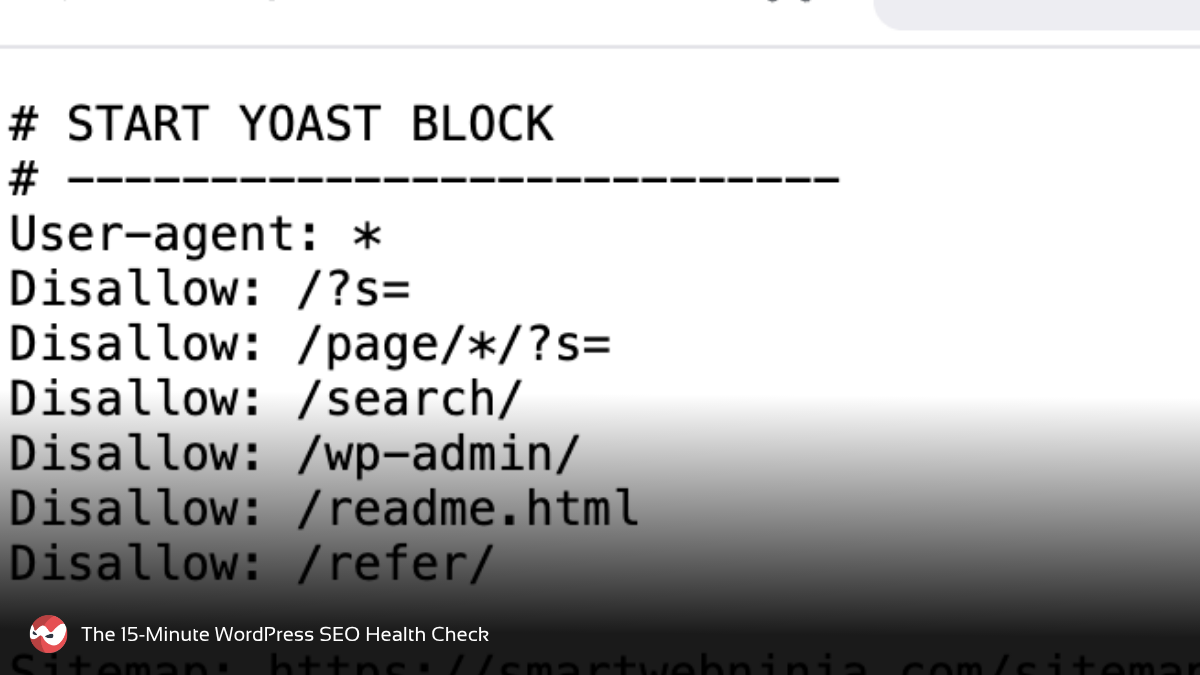
Search engines must discover and read a website before they can rank its pages. The first line of defense is the robots.txt file. This file lives at the root of your domain. It is a simple plain-text document. It manages search engine crawler traffic so the bots do not overwhelm the server with requests.
A single incorrect line of code in this file can accidentally block search crawlers from accessing major sections of a website. Review the official introduction to robots.txt to verify correct syntax.
To check this file, type your domain into a browser and add /robots.txt at the end. Look for the phrase Disallow: /. If you see this phrase by itself, you are blocking search engines from indexing your whole site. Change this directive immediately to allow full access to public pages.
Step 2: Audit the XML Sitemap and Indexation
The XML sitemap acts as a comprehensive index of your standard, preferred URLs. Google recently deprecated the sitemap ping endpoint. Because of this change, passive sitemap discovery and manual Search Console submissions have become far more important. This shift means that manual verification of the sitemap file is a necessary weekly practice.
The sitemap must only include indexable URLs. It must exclude broken links, redirect chains, or utility pages that contain a noindex tag. Open your WordPress dashboard and look at your SEO plugin settings. Check the generated sitemap link. Make sure it does not list login pages, checkout pages, or duplicate category archives. Submit this clean URL directly to Google Search Console to speed up crawling.
Step 3: Measure Search Visibility Metrics
Measuring search visibility provides immediate feedback on indexation success. Search engine visibility is the percentage of clicks a website receives based on its ranking positions. For example, the third organic listing on Google averages an $18.6\%$ click-through rate.
To evaluate overall organic performance, you can calculate a search visibility score using this formula:
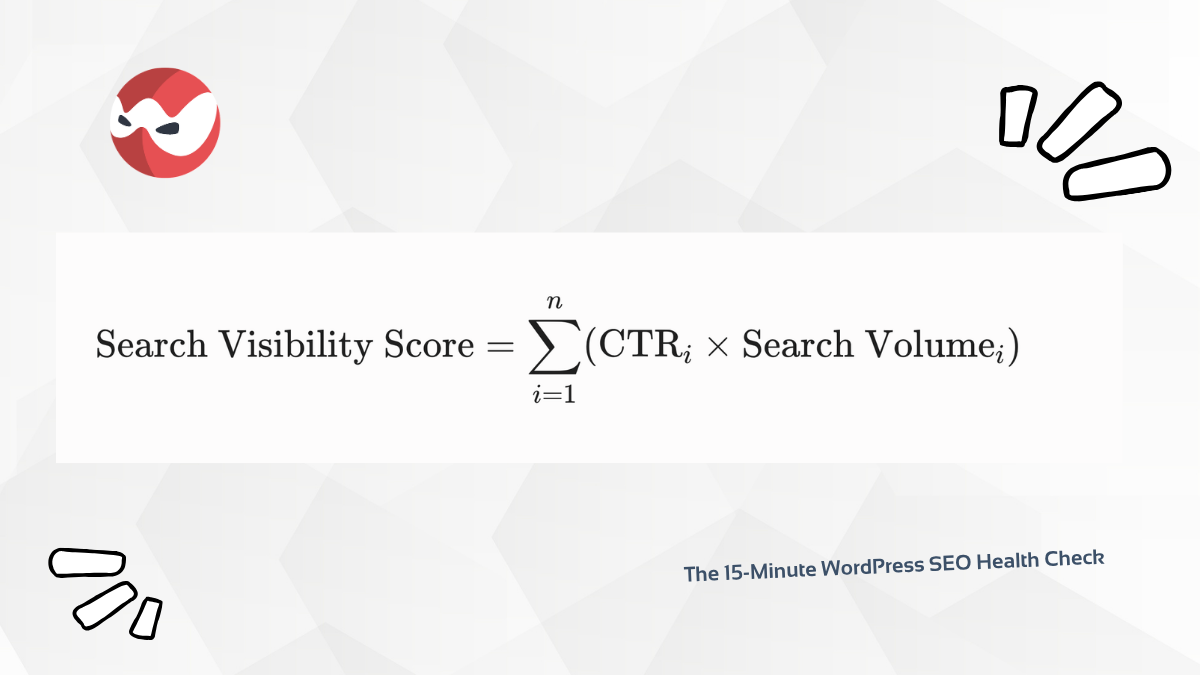
This math confirms how effectively search crawlers parse the domain. Check online documentation for standard search engine visibility definitions to understand these performance metrics better. If your score trends downward, crawlers are likely hitting structural blocks during their visits.
Step 4: Evaluate Core Web Vitals and Page Experience
Modern search algorithms prioritize how fast and stable a page loads for actual users. Google evaluates these page experience aspects through Core Web Vitals. These metrics are analyzed over a rolling 28-day window using real-world field data. The primary performance metrics are Largest Contentful Paint (LCP), Interaction to Next Paint (INP), and Cumulative Layout Shift (CLS). You can monitor these targets by reviewing the official Core Web Vitals guide.
Heavy media files, unoptimized theme code, and bloated scripts degrade these performance metrics. For example, loading an image without defined dimensions causes the page content to jump, creating layout shifts. Eliminating render-blocking resources and implementing lossless image compression are immediate ways to address these issues.
The following table outlines the target thresholds required to pass the page experience evaluation:
| Metric | Core Measurement | Passing Threshold | Primary Fixes |
| Largest Contentful Paint (LCP) | Initial Loading Speed | $2.5\text{ seconds}$ or less | Use a CDN, cache files, optimize server response |
| Interaction to Next Paint (INP) | User Interactivity | $200\text{ milliseconds}$ or less | Break up long JS tasks, defer third-party scripts |
| Cumulative Layout Shift (CLS) | Visual Layout Stability | $0.1$ or less | Set explicit image sizes, reserve ad spaces |
Step 5: Check Mobile Optimization and Layouts
Mobile optimization is important because search engines use mobile-first indexing. A website that functions well on a desktop computer but breaks on mobile phones will experience a drop in organic search visibility.
Run your main URLs through Lighthouse diagnostics inside the Chrome browser tools. This tool identifies layout errors before they trigger ranking penalties. Look for text that is too small to read, clickable elements that sit too close together, and content that flows off the edge of the screen. Fix these design issues within your WordPress theme customizer to keep mobile traffic stable.
Step 6: Fix Link Structure and Orphan Pages
Link integrity is a core pillar of technical health. Every page must have an internal link from at least one other page on the site. This prevent orphan pages, which search engine crawlers rarely find.
Broken links frustrate visitors and waste your crawl budget. Use a broken link checker plugin or a cloud crawler tool to scan your internal links. When you find a 404 error, replace it with a live URL or set up a 301 redirect. Regular database cleanup and active URL redirects preserve search equity. They keep the visitor journey seamless.
Step 7: Apply Administrative Security Measures
Security connects directly to search performance. Search engines protect searchers by labeling compromised websites as unsafe. This label destroys organic traffic overnight.
Implementing a secure HTTPS connection with an SSL certificate is a fundamental requirement. After installing the certificate, check your WordPress settings to confirm that both the WordPress Address and Site Address use the https:// prefix.
Secure the administrative login path by deploying a firewall and setting up automated IP blocking. This prevents brute force attacks from draining your server resources.
Step 8: Deploy Local Business Schema for Regional Growth
For companies operating across the United States, scaling organic growth requires a deliberate approach. National visibility is useful, but capturing local transactions requires geographic targeting.
Incorporating Local Business Schema markup translates contact information into clean data that search engines index with certainty. You can learn practical execution strategies by reading these WordPress local SEO tips for brick-and-mortar businesses to see how structured code drives actual foot traffic.
This local optimization works well when targeting specific cities. For example, executing a localized WordPress SEO health check in Chicago, Illinois, or running a targeted audit in Austin, Texas, allows a business to rank for high-intent queries. This strategy connects ready-to-buy regional searchers directly to dedicated landing pages. Implementing these localized technical changes helps maintain a competitive advantage across regional markets.
Step 9: Establish a Long-Term Maintenance Plan
Managing these complex technical requirements can quickly become overwhelming for busy operators. Routine monitoring, daily backups, and security hardening require constant attention. A single plugin update can conflict with your theme and break your robots.txt file or sitemap structure without your knowledge.
Partnering with a dedicated technical team simplifies this process. Subscribing to professional Smart Web Ninja website plans guarantees continuous optimization, security monitoring, and technical support. With professional support, a business can focus on growth while the website operates safely. For advanced protection, utilizing managed Smart Web Ninja security services prevents hacks and preserves organic search equity. Regular audits keep your technical foundation clear of errors so your content can rank higher.